
Get the app
Download I’M SAFE on iPhone or Android and follow the sign-in steps.
Download the free appHow I’M SAFE works
Get the free app. Invite family or friends into a private group. Then choose when to share your location or a trip.
No Tag or Personal Alarm needed.

01 / Get connected
A Bubble is an invite-only group inside the app. Each person uses I’M SAFE on their own phone.
Download I’M SAFE on iPhone or Android and follow the sign-in steps.
Download the free appCreate a Bubble, give it a name and send an invitation. Your people choose whether to join.
Family, friends, housemates or a trip.Review permissions, then turn sharing on for the Bubble you choose.
Phone permission alone does not turn sharing on.Phone permission alone does not share your location with a Bubble. You choose the Bubble, and you choose when to share.
Choose a Bubble, set a destination or duration and start. The invited people can follow your progress until you end it.
A Journey is not monitoring and does not promise arrival.Save a place such as home or work, and chosen Bubble members get an update when you arrive or leave.
Updates depend on sharing, location data and notification settings.03 / Head out, stay connected
Let your people follow along without messaging every turn.
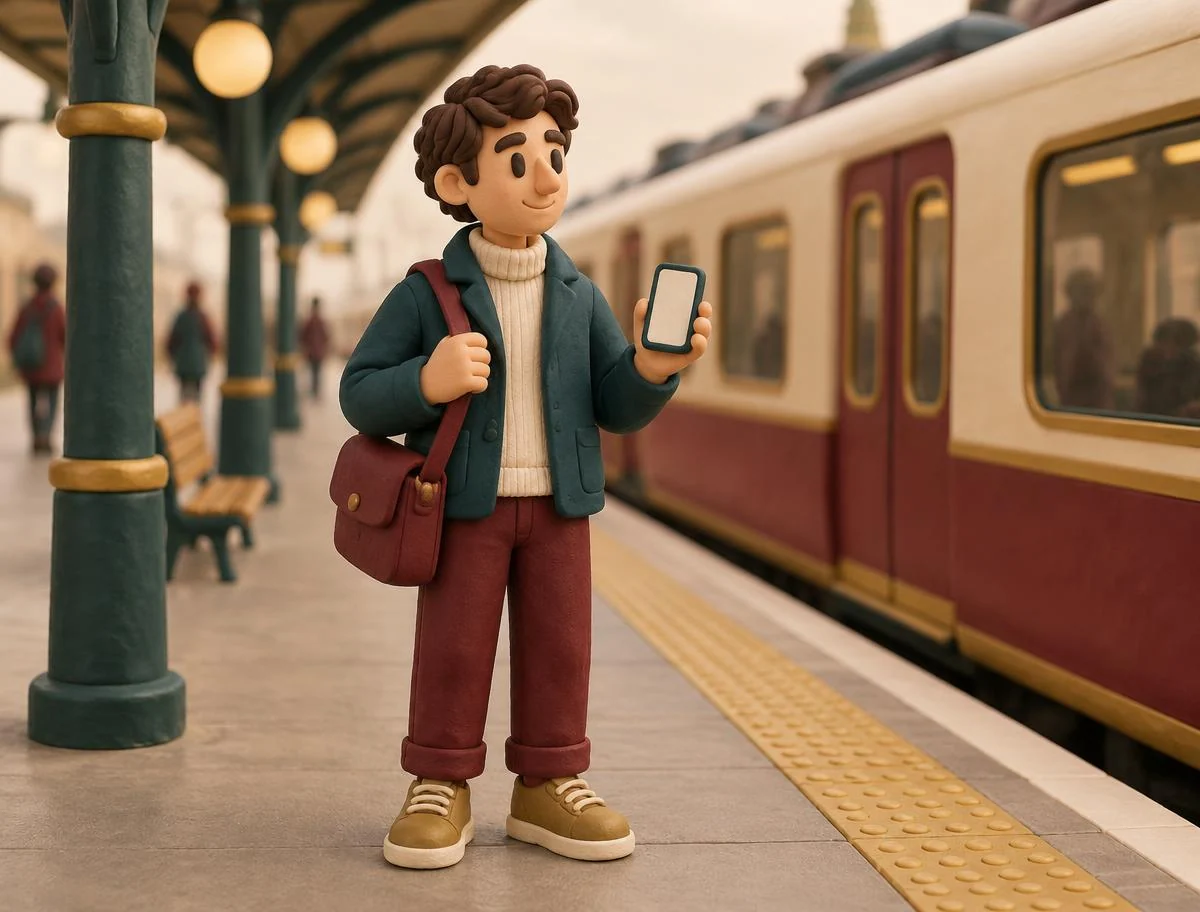
Open Journey and choose the people who should follow the trip.
Choose a destination or duration, then start your Journey.
End the Journey when you’re done. Review completed trips later with Plus Travel Insights.
Save home or work as a Zone for arrival and departure updates. No need to start a Journey each time. See how Zones work
04 / Understand SOS beforehand
SOS alerts your selected Bubbles, not emergency services or a monitored response centre.
Watch the SOS guide0:49Immediate danger? Contact local emergency services directly. No app or device can guarantee help will arrive.
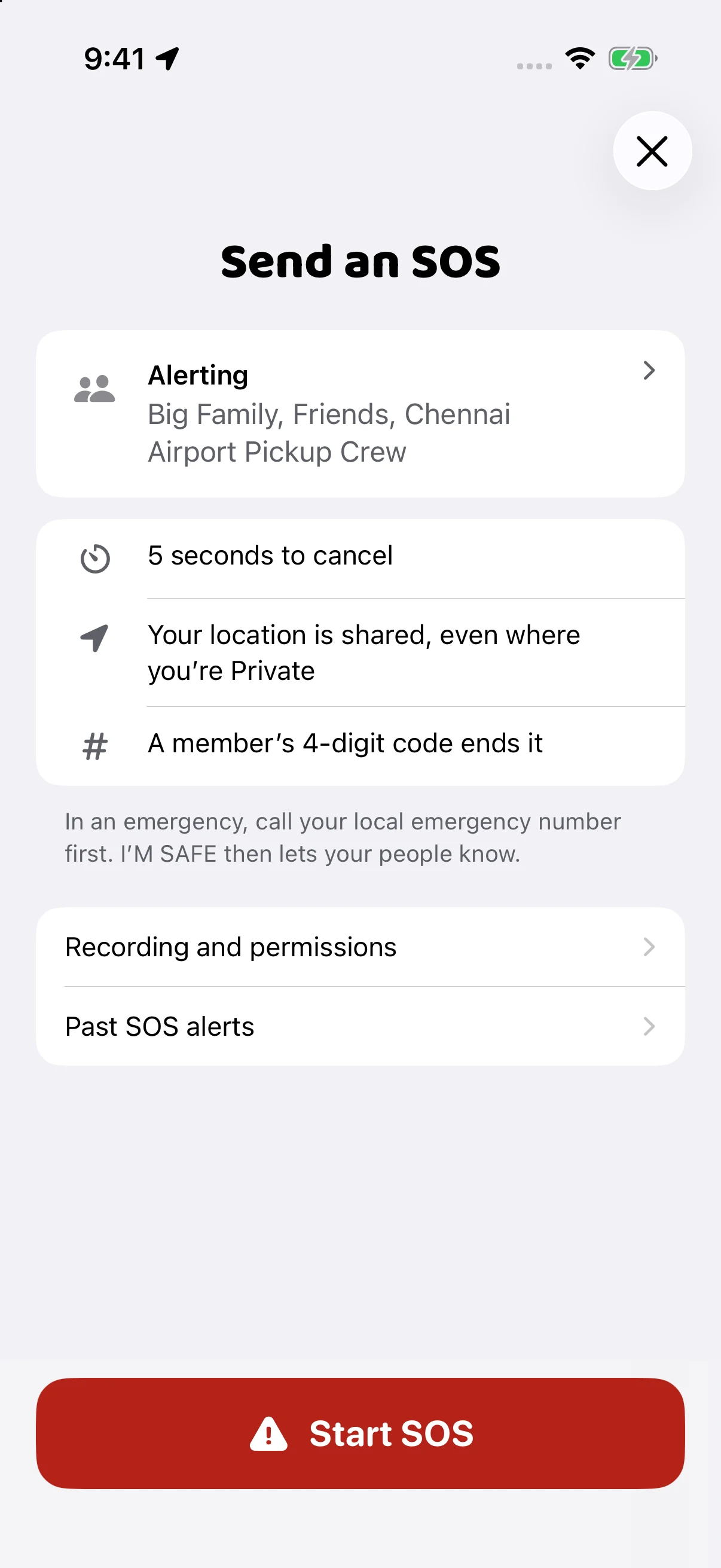
If you practise SOS, agree it with your recipients first.
05 / Choose a physical device
They do different jobs. Neither is required to use the free app.
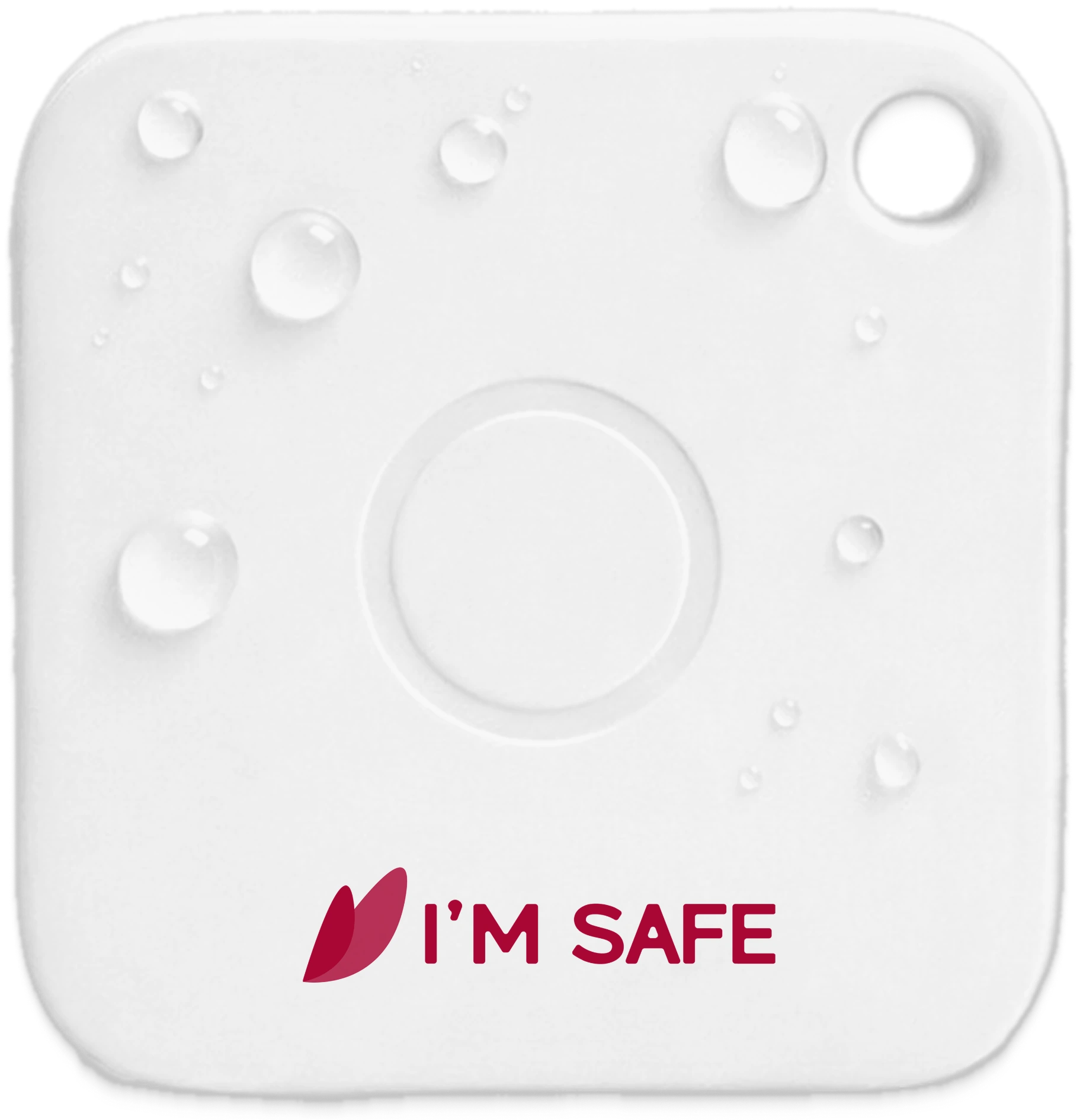
App + SOS Tag
Carry it on your keys or bag. Its button works through the app on a nearby paired phone.
Needs a compatible, charged, paired phone with Bluetooth and required permissions. Not a GPS tracker. It does not contact emergency services.
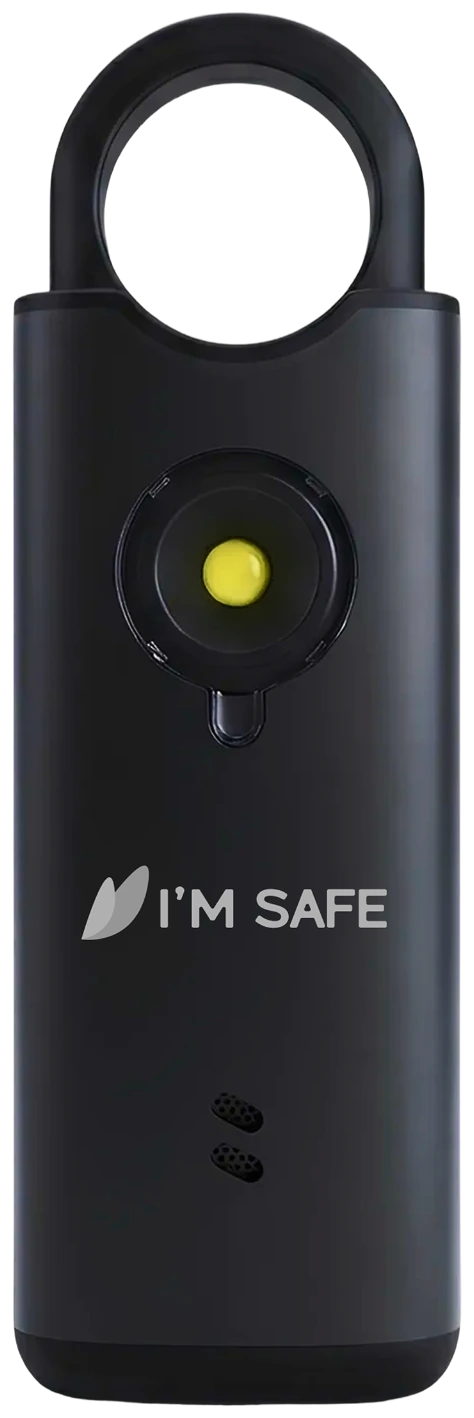
Personal Alarm
Pull the pin to sound the siren and draw attention nearby. Follow your model’s instructions to stop it and check its power.
It does not send a remote SOS alert. It cannot share your location or contact emergency services.
The simple comparison
Private groups, location sharing, Journeys, Zones and SOS from your phone.
Free. No device purchase.Download the appThe app experience, plus a physical button and supported nearby-finder features.
Phone + Bluetooth required.See SOS TagsA siren to draw attention nearby, without relying on a phone or app.
No remote alerts.See Personal AlarmsWant both device types? Explore Safety Kits Compare all devices
FAQs
A few practical checks make the choices clearer.
Read the free safety guideContinuous location updates require the relevant background access and phone settings. Connectivity, battery-saving settings and permissions can interrupt them. Use the app’s readiness guidance and check update timestamps.
No. The Tag’s app-connected functions need a compatible nearby paired phone and Bluetooth. A last-connected location is historical information, not live GPS tracking of the Tag.
No. A standalone Personal Alarm makes a sound nearby. It does not connect to your Bubble or send an SOS alert through the app.
The app is available on iPhone and Android, but some features and controls differ. Check in-app availability and your device’s compatibility before buying an accessory or plan.
Review the recipient Bubbles, permissions, connection and battery. Tell your recipients before a practice alert, and learn how to cancel the countdown and end an active SOS. A test does not guarantee future delivery.
A minute. A little more confidence.
Six short app guides. Start at the beginning, or choose just what you need.
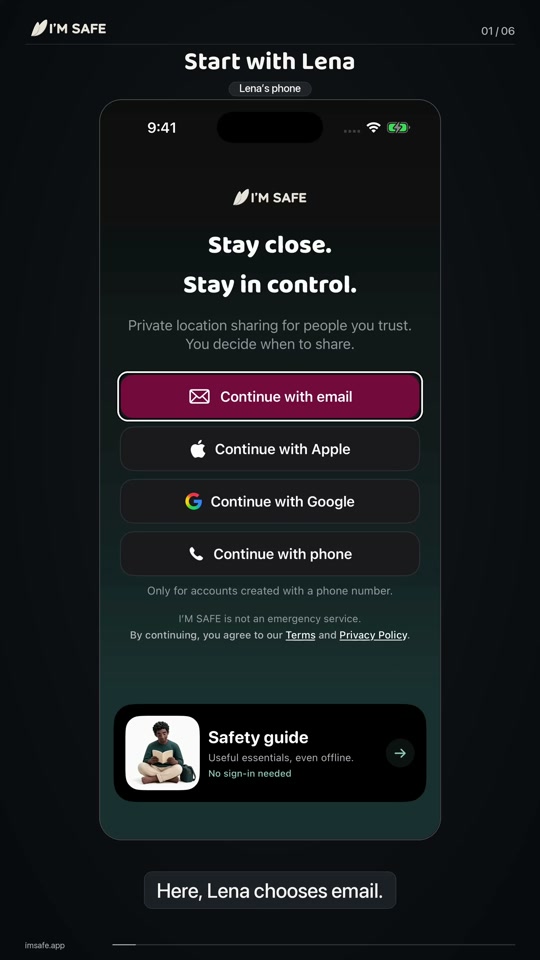
01 / Start here
Create an account, invite someone you trust, and see each other in your Bubble.
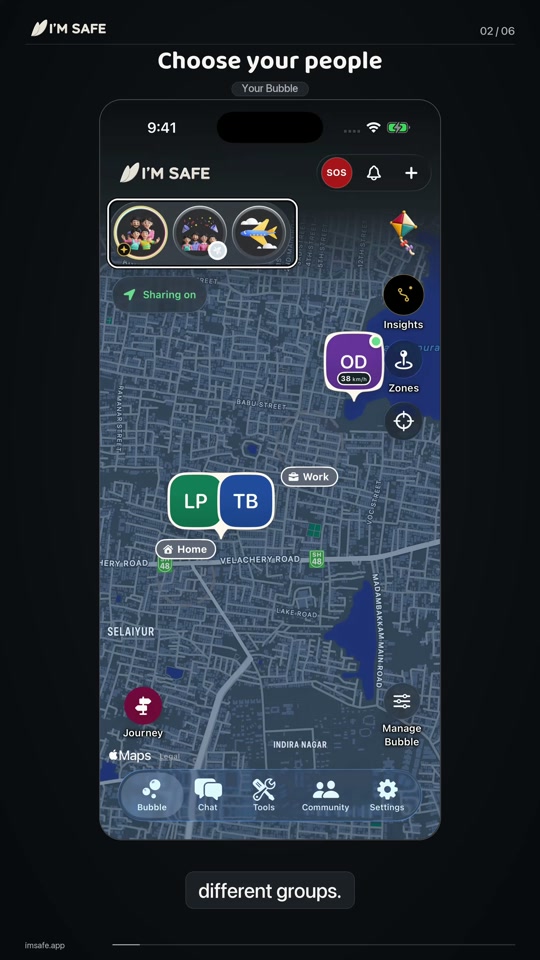
02 / Your people
Find your people, switch groups and choose when you share.
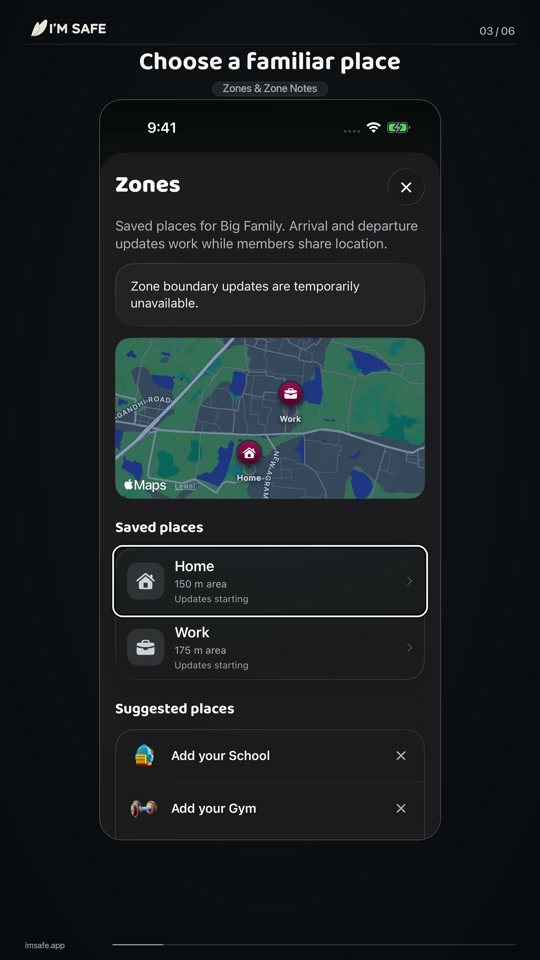
03 / Familiar places
Set a familiar place and leave a little note for your Bubble.
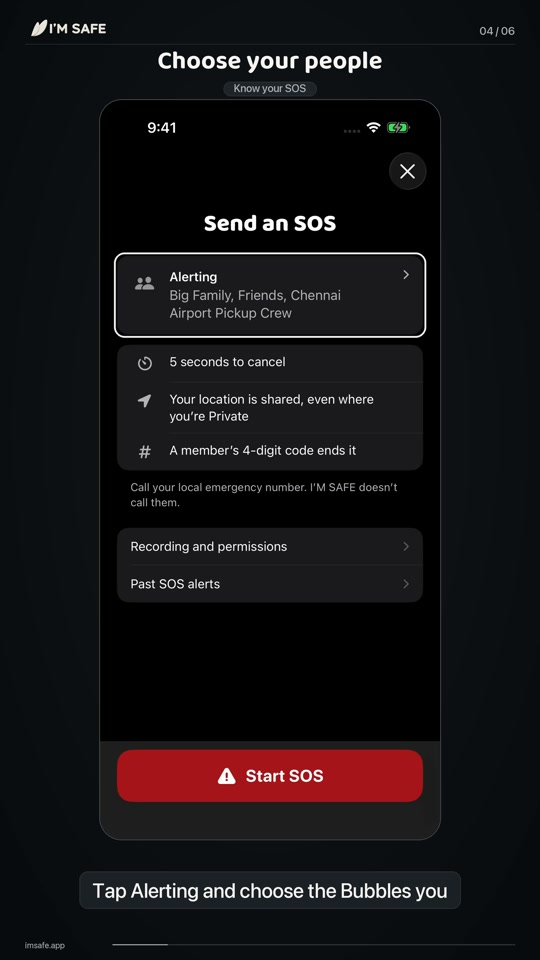
04 / Be prepared
Learn the recipients, countdown and settings before you need them.
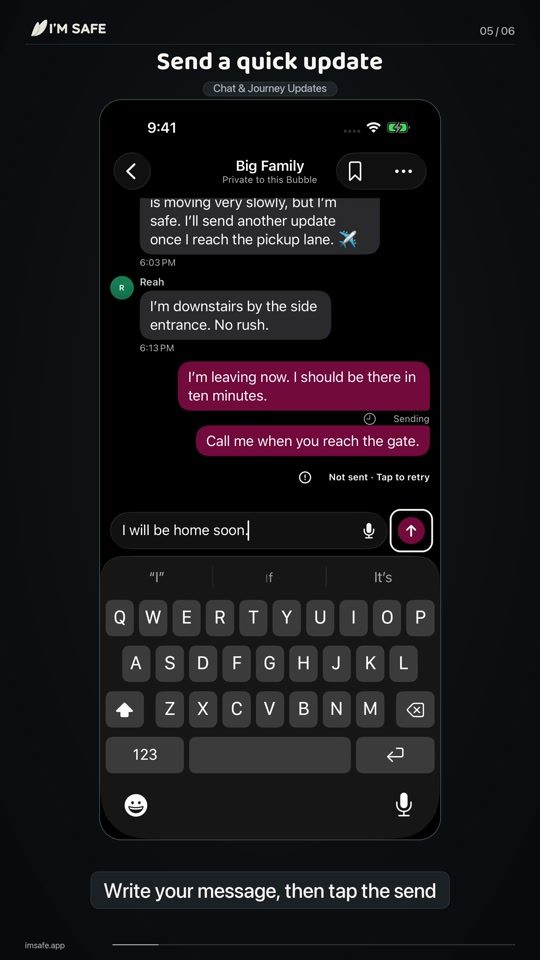
05 / Keep in touch
Send a quick message or let your Bubble follow a trip.
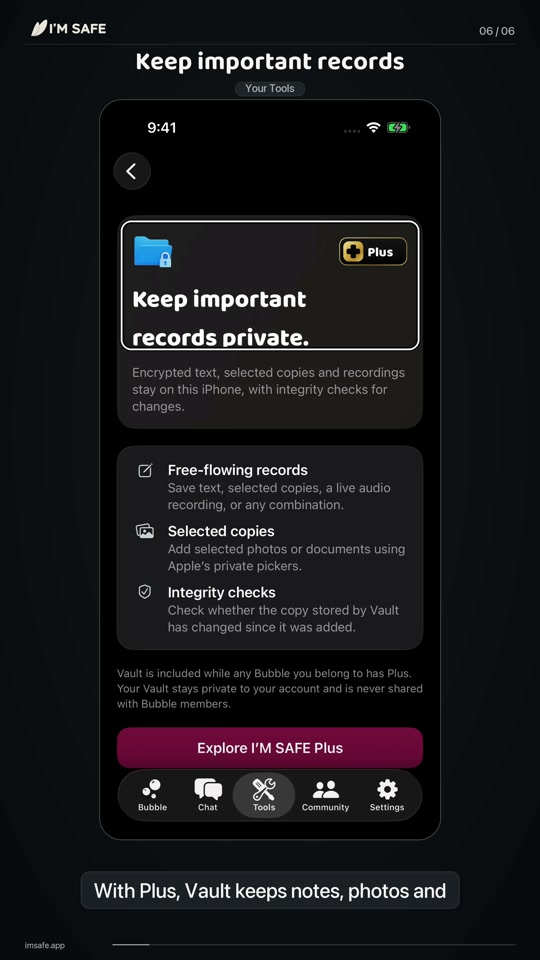
06 / A little extra help
A quick look at Vault, My Tags, support and the Safety guide.
Full English captions · Shown on iPhone. Android controls may differ.
Share live location · Included free
Share a live-location link for one, three or seven hours. Your friend can open it in a browser, without joining your Bubble.
See the full sharing flow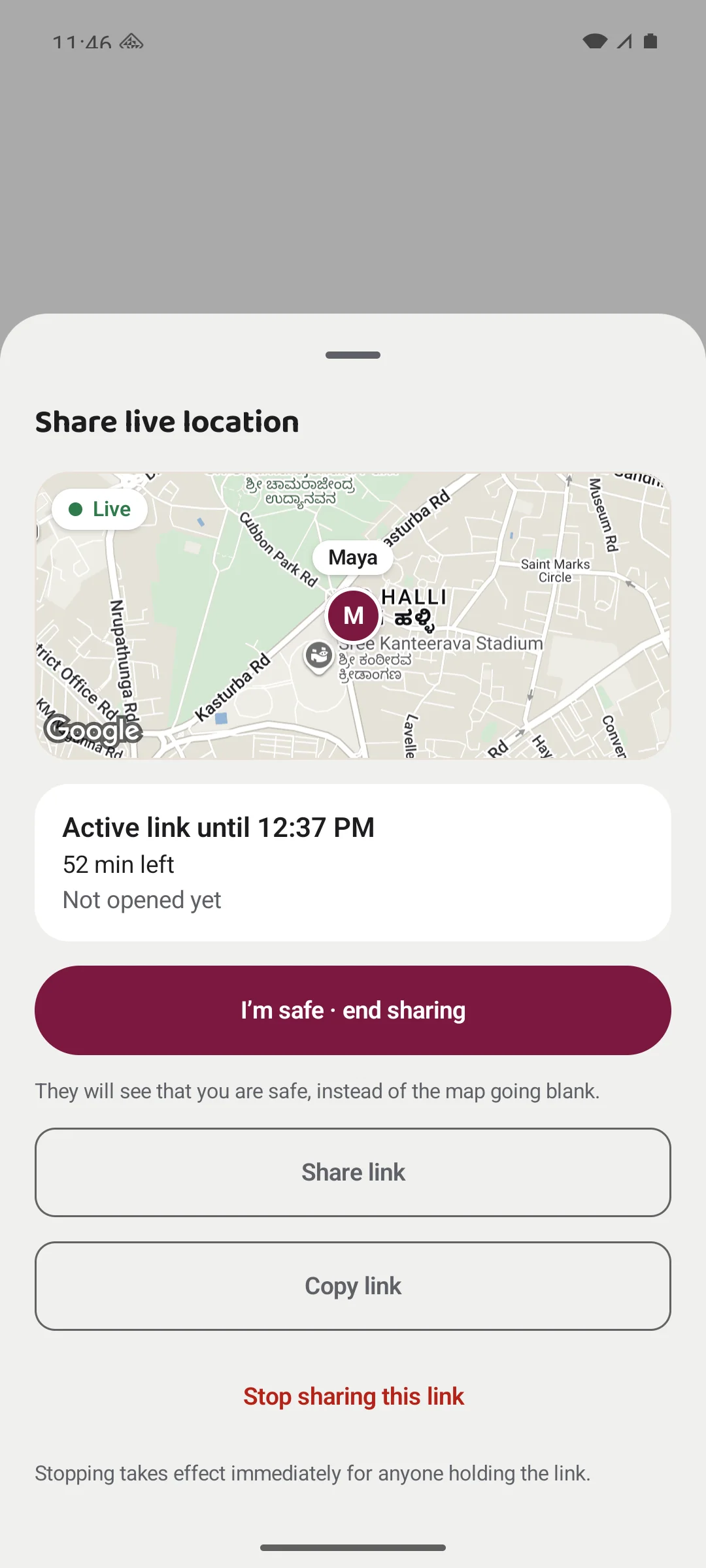
Your link ends automatically. You can also finish early.
Adding a tablet, watch or home-screen widget? See compatible companions and their setup. Your carried phone supplies location; tablets are viewing companions.
Start with your people
Get the free app, invite someone you trust, and choose when to share.
Download the free appAvailable on iPhone and Android.
Walk through the setup