
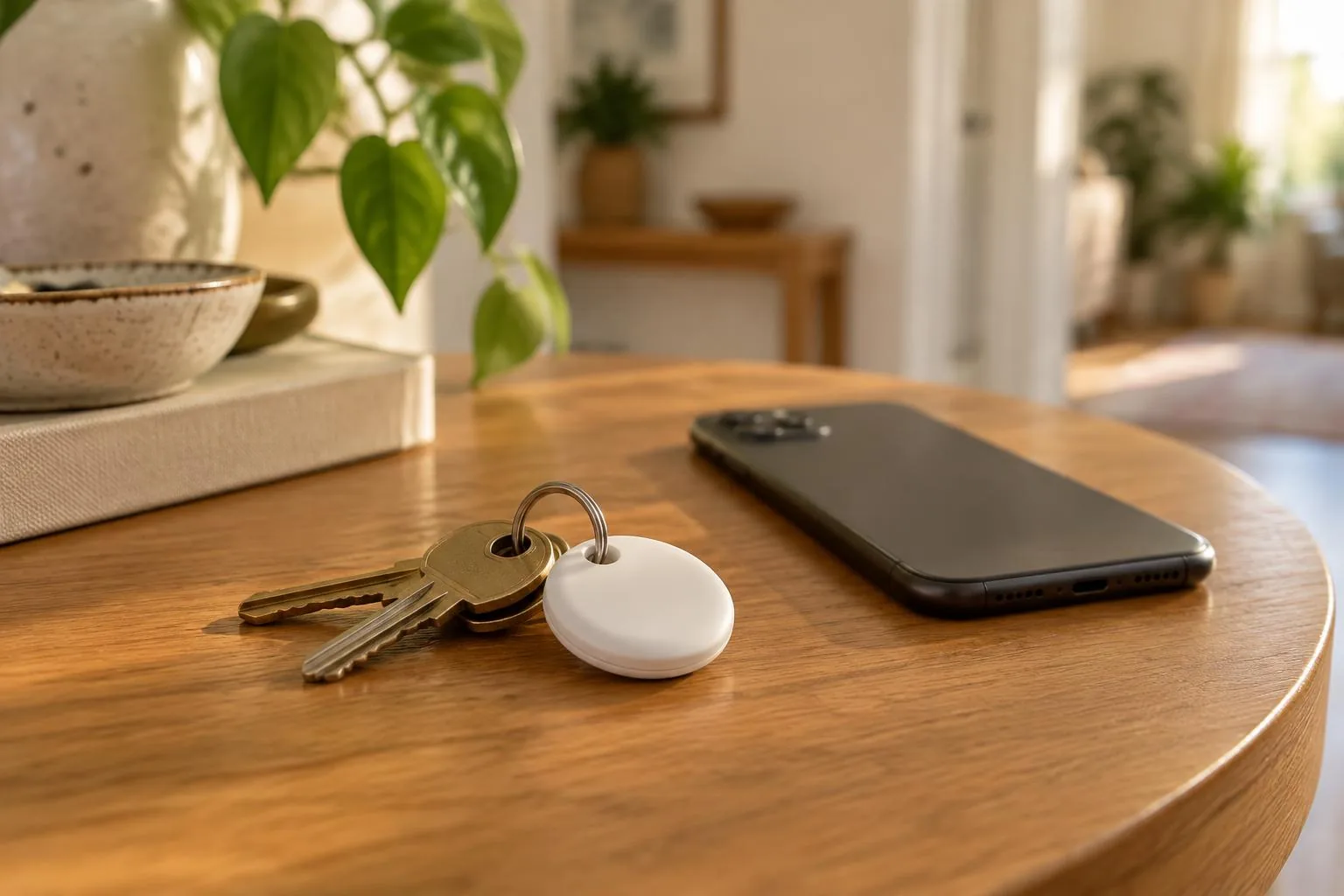
If your iPhone says "AirTag Found Moving With You", or your Android phone warns about an unknown tracker, a Bluetooth tracker that isn't yours has been travelling with you. Play a sound to find it, check who registered it, then decide what to do with it. If you think someone is following you on purpose, get somewhere safe and talk to police before you switch it off.
Most alerts have an ordinary cause: a friend's keys in your bag, a family member's AirPods in the car, a borrowed jacket. The steps below help you work out which kind you have.
Why your phone is showing this alert
Apple and Google both build tracker alerts into their phones. The phone looks for trackers that aren't yours and keep moving with you. Google says you "need to physically move with the tracker over time before receiving an alert" (Google).
- On iPhone, the alert usually reads "AirTag Found Moving With You". You might also see "AirPods Detected" or "Unknown Accessory Detected" (Apple).
- On Android, alerts cover Apple AirTags plus tags and headphones that work with Google's Find Hub network (Google).
Misuse does happen. In 2023, police in Ahmedabad found an AirTag glued under the seat cover behind a woman's driver's seat, in what was reported as the first case of its kind in India (Deccan Herald).
Step 1: Make sure your phone can alert you
- iPhone: Apple recommends iOS 17.5 or later. That version also lets your iPhone alert you to compatible trackers from other brands (Apple).
- Android: unknown tracker alerts work on Android 6 and later. On Android 12 and later, the setting lives in Settings > Safety & emergency > Unknown tracker alerts. On Android 11 and lower, it's Settings > Google > Personal & device safety > Unknown tracker alerts. Check that Allow alerts is on (Google).
On Android you don't have to wait for an alert. On the same screen, tap Scan now. Google says a manual scan takes about 10 seconds (Google).
Step 2: Find the tracker
- iPhone: tap the alert, tap Continue, then tap Play Sound. On some iPhones you'll also see Find Nearby, which points you toward an AirTag. If Play Sound isn't offered, Apple says the item may no longer be with you, or may be near its owner (Apple).
- Android: open the alert and tap Play sound. Google says playing the sound won't notify the owner. For Find Hub trackers, Find nearby shows distance and direction (Google).
No sound? Look through your bag, jacket pockets and car, the places Apple's safety guide suggests checking (Apple Personal Safety). Trackers also beep on their own: Apple says a tracker that has been away from its owner for a while will make a sound when it's moved (Apple).
Step 3: See who it belongs to
Hold the top of your iPhone, or the back of your Android phone, near the tracker. For an AirTag, use the white side. Information about the tracker appears on screen (Apple, Google).
For an AirTag, Apple says this includes "its serial number and the last four digits of the phone number of the person who registered it" (Apple). That's often enough to recognise a family member. Take a screenshot either way. If you go to police, they may ask for the tracker and its serial number (Apple).
Step 4: Decide what to do with it
If it belongs to someone you know and trust, tell them and hand it back.
If you don't recognise it, you can disable it. On iPhone, tap Instructions to Disable; for an AirTag, that means taking out the battery (Apple). Google says turning a tracker off stops the owner getting further location updates from it (Google).
One thing catches people out. Turning off Bluetooth or Location Services on your own phone does not stop the owner seeing where the tracker is (Apple). Only disabling the tracker does that.
If you think someone is tracking you on purpose
Pause before you change anything. Apple's Personal Safety guide asks you to think about your safety before making changes (Apple Personal Safety). In its advice on stalking apps, the US Federal Trade Commission warns that cutting off access "could tip off your abuser" (FTC).
- Go to a safe public place. Apple and Google both give this advice (Apple, Google).
- Contact your local police. Apple says police can work with Apple on a report (Apple). Google notes that some trackers reset when they're turned off, so police can't get the owner's details afterwards (Google). If you plan to report it, ask police before you switch it off.
- Tell someone you trust where you are and what you found.
- Get help with a safety plan. The FTC suggests talking to a domestic violence advocate before making changes, and using a different device if you think yours is being watched (FTC).
Check your phone as well
A tracker in your bag isn't the only way your location can leak.
- On iPhone with iOS 16 or later, Safety Check lets you quickly change what you're sharing with other people (Apple Personal Safety).
- Apps can track a phone too. The Queensland Government notes that swapping your SIM card isn't enough, because a tracking app can stay on the phone (Queensland Government).
- The FTC lists warning signs such as a battery that drains faster than usual, higher data use, overheating, and a phone that turns off and on by itself (FTC).
Where I'M SAFE fits
I'M SAFE doesn't detect trackers. Your phone's built-in alerts do that job. I'M SAFE can help with telling someone you trust. You can share a live-location link for one, three or seven hours. The person you send it to doesn't need an account, and anyone it's forwarded to can use it while it's active, so send it only to people you trust. SOS alerts the Bubbles you selected and shares your live location while the alert is active. It does not call emergency services (I'M SAFE app). If you think someone can see your phone, follow the FTC's advice and use a device they can't reach.
For current I’M SAFE features, visit the App page. Device options and availability are in the shop.


